Utilizing Adobe Acrobat Classic for Students
Key Takeaways
- Adobe Acrobat Classic allows students to work securely offline with desktop-only PDF tools.
- Editing text and images in a PDF, as well as managing pages, is simple with this software.
- PDFs can be converted into formats like Microsoft Word, Excel, or PowerPoint, keeping the layout intact.
- Easily create, fill, and sign forms, which can be essential for academic tasks.
- Security features like password protection help keep sensitive information safe.
Adobe Acrobat Classic presents a variety of tools that cater specifically to the academic needs of students. Understanding how to utilize its features effectively can greatly enhance a student’s workflow, enabling them to handle documents with ease and security. In this article, we will explore how you can effectively use Adobe Acrobat Classic for your academic endeavors in 2025.
Getting Started with Adobe Acrobat Classic
Before delving into its functionalities, it's important to first set up Adobe Acrobat Classic on your device. Here are the steps:
- Download the software from the Adobe Acrobat Classic Student & Teacher Edition page.
- Follow the on-screen instructions to install the software.
- Activate your edition using the provided online code.
Key Features for Academic Success
Adobe Acrobat Classic offers numerous features tailored for students. Below are some standout tools that can significantly streamline your academic tasks:
| Feature | Description |
|---|---|
| Secure Offline Work | Use PDF tools without internet access, ensuring privacy and control. |
| Edit PDFs | Modify text and images directly within your documents. |
| Convert PDFs | Transform your PDFs into Microsoft formats without losing layout or formatting. |
| Create and Fill Forms | Craft professional-looking forms that can be easily filled out and signed. |
| Document Security | Password protect and redact sensitive sections to maintain confidentiality. |
Using Adobe Acrobat Classic Features Effectively
1. Editing Text and Images
The editing feature allows students to make necessary changes without reworking entire documents. Here’s how to edit in Adobe Acrobat Classic:
- Open your PDF document in Adobe Acrobat Classic.
- Select the "Edit PDF" tool from the right-hand pane.
- Click on the text or image you wish to edit and make your changes.
2. Creating and Signing Forms
Forms can be essential for submitting applications or assignments. Create forms with:
- Select "Prepare Form" from the Tools menu.
- Add text fields, checkboxes, and signature fields as necessary.
- Save and share your completed form directly.
3. Converting PDFs to Other Formats
Sometimes documents need to be converted to a different format for editing. To do this:
- Open the PDF and go to “File” > “Export To”.
- Select your desired format (Word, Excel, PowerPoint).
- Click “Export” and save the file.
4. Keeping Your Documents Safe
With the sensitive nature of academic documents, security is pivotal. To password-protect a document:
- Go to “File” > “Properties”.
- Click on the “Security” tab and set the desired password.
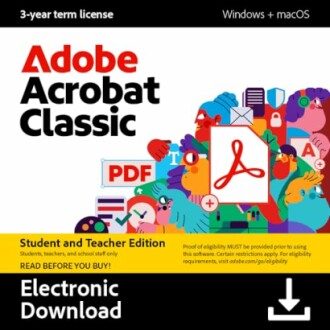 Must-have for Students
Adobe Acrobat Classic Student & Teacher Edition
This software offers robust PDF editing and document security features essential for any student.
Learn MoreTips and Tricks for Maximizing Your Use
Pro Tips:
- Familiarize yourself with keyboard shortcuts to speed up your workflow.
- Utilize the organization feature to manage multiple documents effectively.
- Regularly back up your important PDFs to avoid data loss.
Conclusion
Mastering the features of Adobe Acrobat Classic can significantly enhance your academic experience. From editing documents to creating secure forms, this software is designed with students in mind. Take your time to explore its functionalities, and you'll find that it's not only about managing PDFs but also elevating your educational journey.
Pros
- User-friendly interface.
- Multiple functionalities geared towards students.
- Effective document security features.
Cons
- Initially requires time to learn all features.
- Some features may be complex for new users.